Introducing AI Playground: simpler OpenRouter sign-in and clearer spending controls
Update — 19 September 2026: The AI Playground update is now live, with OpenRouter sign-in and the spending controls described below. Open AI Playground to try it. The original preview below was written before deployment.
My OpenRouter interface is getting a name of its own: AI Playground. It’s a browser app for trying AI chat and image generation, with OpenRouter providing access to the models. The next update makes connecting an account easier and gives spending a more visible place in the interface.
The update is planned for 19 September 2026. The app is already accessible here, but at the time of writing it still serves the previous version. The changes below will appear once the new version is merged and deployed.
Connect through OpenRouter
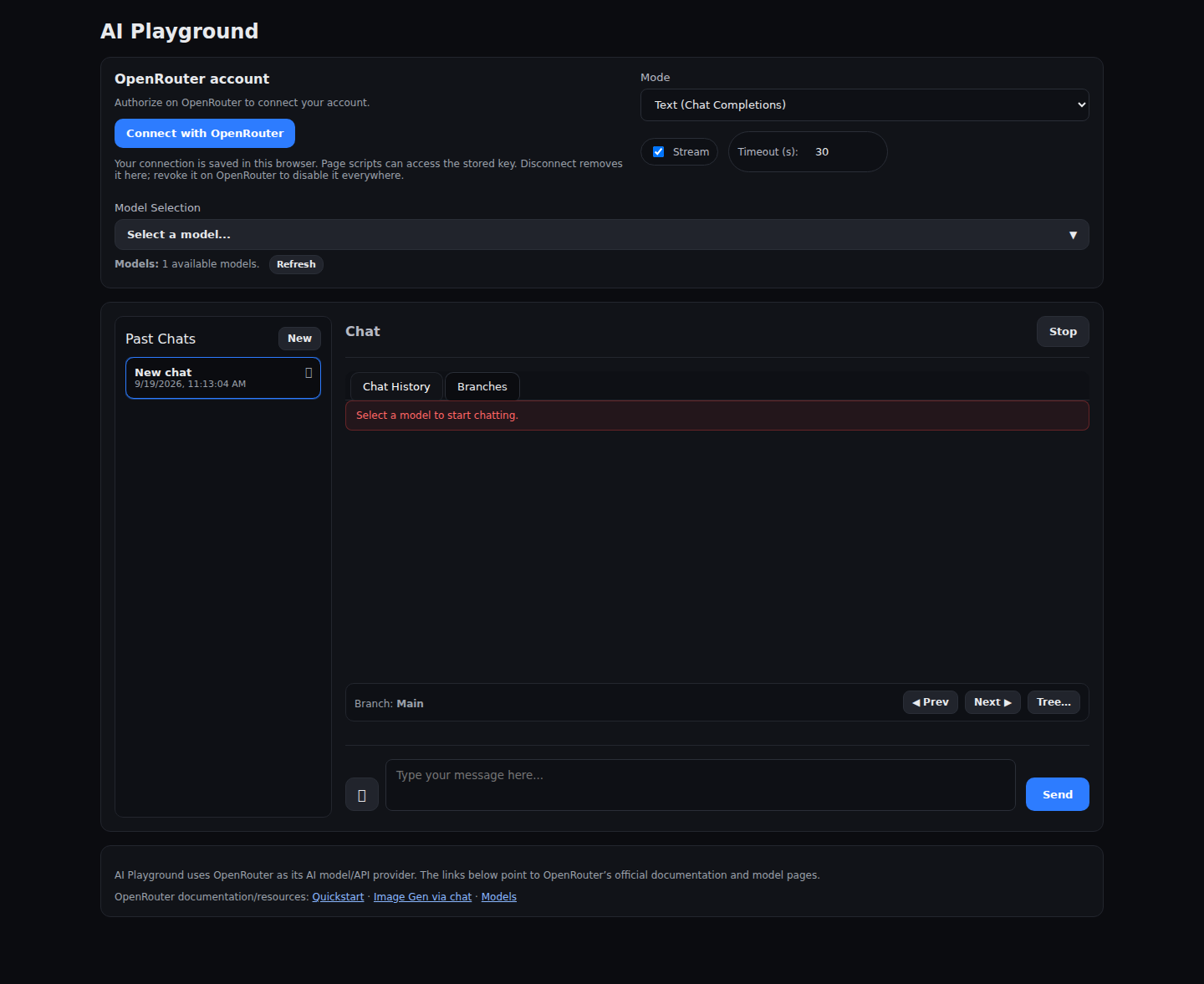
The old setup asked you to copy an API key into the app. The new version replaces that with a Connect with OpenRouter button. You authorise the connection on OpenRouter, return to AI Playground, and choose a model.
The connection is remembered in your browser, so you don’t need to repeat that process on every visit. There’s also a Disconnect button in the account panel. Disconnecting removes the saved connection from that browser; revoking it on OpenRouter disables the key itself.
AI Playground is my app, and OpenRouter is the service it uses to reach the AI models. The new name and the links in the interface make that relationship clearer.
See your usage and remaining allowance
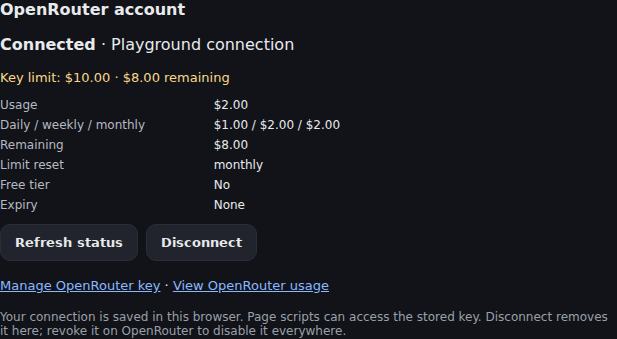
Once connected, the account panel shows the key’s usage, remaining allowance, reset period and expiry where available. You can refresh those details or open OpenRouter’s key settings and usage pages directly.
That puts the information you need beside the model selector. If you want to change the spending limit, the management link takes you to OpenRouter, where that limit is controlled.
Paid models are an explicit choice
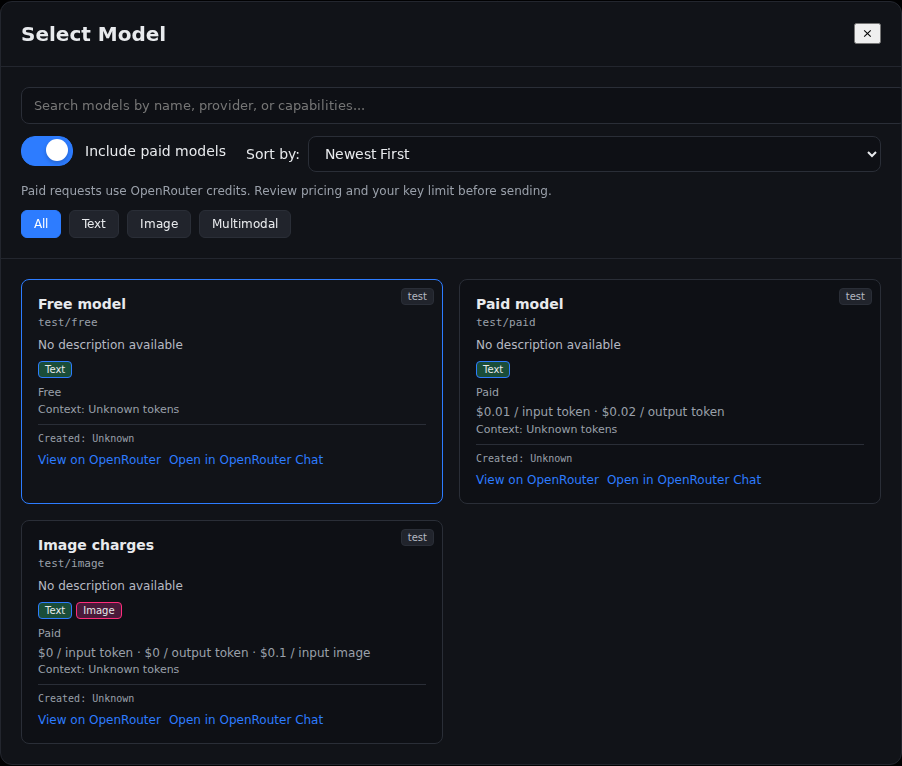
Paid models are hidden by default. Showing them requires an opt-in, and the selector displays the reported charges, including image charges where relevant.
Before the first paid request for a model in a page session, the app checks the key’s status and asks you to confirm the pricing and allowance. It asks again if the relevant pricing or limit changes. Paid requests use your OpenRouter credits; signing in doesn’t make a paid model free.
A zero-dollar limit, an exhausted allowance, or an unavailable account-status check blocks paid requests. The app also won’t quietly switch a failed request to a paid fallback model. You can still select free models, subject to OpenRouter’s availability and limits.
Chat, images and conversation branches
The app still supports chat, streaming responses, image generation with compatible models, and conversation branches. You can try a different direction in a conversation without losing the original path.
Chat history stays in your browser, so it doesn’t automatically follow you to another device. Model requests still go through OpenRouter: storing chats locally doesn’t mean the AI runs on your computer.
If you used the earlier development build, this update starts with a fresh local chat database and clears its old saved credentials. History created in the new version will be saved normally.
Try AI Playground
You can find the app at aiplayground.starbugstone.com. Once the update is deployed, look for the new name and the Connect with OpenRouter button.
The project is open source. For the implementation details and screenshots, see the AI Playground update on GitHub. The PR’s automated checks use simulated OpenRouter responses; live sign-in and model requests still need checking after deployment.