
Panel Page Flip: upload, organise and read your comic collection
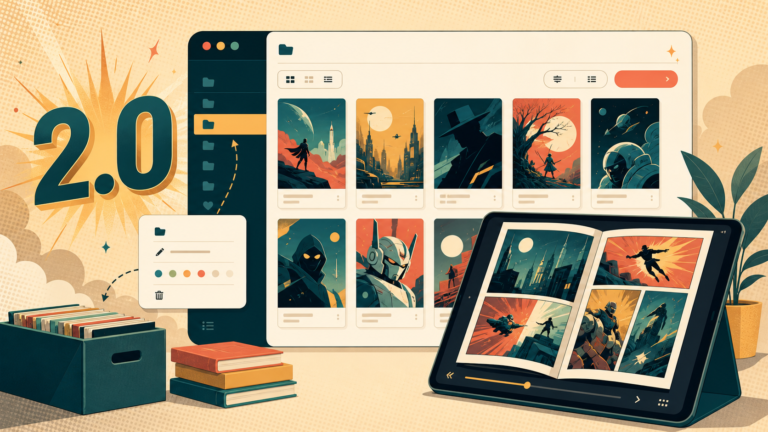
Panel Page Flip is a browser reader for your own digital comics. You upload files to your account, organise them into a library and continue reading on another device using the same account. Start at comics.starbugstone.com.
For a first try, use one comic you are entitled to upload rather than sending your entire collection. Open it, check a few pages and confirm that your reading position is saved. That gives you a useful check of both the file and the reader before a larger import.
Choose a file the installation can read
The project supports CBZ, CBR, CB7, CBT and PDF, but each installation enables the formats its server can handle. Check the formats offered by the uploader. A file extension by itself does not guarantee that the format is enabled.
CBZ is the simplest starting point. PDF support depends on the document: image-based comic PDFs can be read without an external renderer, while pages made from text or vector drawing need additional server tools. Encrypted or password-protected PDFs are rejected. Renaming a file’s extension does not convert it.
If you need a comic to try, the downloadable-comics guide separates files you can keep from services that only offer reading inside their own app.
Upload one comic and check your progress
- Create an account or sign in. Email registration includes verification; Google sign-in is offered only when enabled on that installation.
- Use the upload form to choose a supported comic file. Wait for the upload and processing to finish, then find the comic in your library.
- Open the comic and read a few pages. Use the on-screen controls or keyboard navigation, then return to the library.
- Open it again to check the saved position. To continue on a phone or another computer, sign in to the same account on the same hosted site.
The library belongs to your account on that server. It is separate from the files on your computer. Keep your original comic files and your own backup; uploading them to a hosted reader should not be your only copy.
Use folders for series and tags for themes
A practical starting layout is a folder for each series, with tags for things that cut across series, such as a creator or reading list. Folders are a private way to arrange library entries. Moving a comic between them does not rename or move the stored source file.
Deleting a folder does not delete its comics. Its contents return to the parent folder, or to the library root. Deleting a comic is a separate action. A recipient of a shared comic can organise it in their own folders without changing the owner’s library.
If alphabetical sorting puts issue 10 before issue 2, use Auto rename comics in the folder and inspect the preview. It adds leading zeroes where needed so numbered titles sort sensibly. Nothing is written until you choose Accept rename. Undo preview discards the proposal; after accepting, Undo rename remains available until you leave that folder.
Import a larger collection in manageable batches
Once your first comic works, use bulk upload for a larger batch. Check which files completed before submitting them again. Storage usage is shown in the library sidebar and Settings, so compare the remaining allowance with the size of the files you are adding.
Folders and tags do not reduce storage use. The quota counts the source files you own; comics shared with you do not add another stored copy to your allowance. Your actual limit is the one shown for your account, which can differ between installations.
The optional Dropbox importer copies supported files into the reader, checks file contents for duplicates and can use folder names as tags. It is a one-way import, not a backup or a two-way file synchronisation service.
If something does not work
The uploader refuses the format: check the formats it offers. A self-hosting administrator can use php bin/console app:comic-formats:check to check the runtime and Admin → Formats to enable supported formats. On a hosted account, report the format and error through Contact.
A PDF is rejected: check whether it is password protected and whether its pages are images or require rendering. The server may support image-based PDFs without supporting every PDF. Include the exact error and file size in a report; do not post a copyrighted comic publicly to demonstrate the problem.
Your comic seems to have disappeared: clear search and tag filters, then look in the library root and the folder you selected. If an upload’s destination folder was removed before it finished, the comic is placed at the root.
Your place is missing on another device: check that you are on the same hosted site and signed into the same account. A separate self-hosted installation has its own library and progress.
Sharing and further reading
Use the Sharing page for comics you have permission to share. Sharing grants access to the existing file; it does not create a backup for the recipient. The owner can revoke an individual grant. Withdrawing a code and revoking access already granted to someone are separate actions.
This guide was checked against the project documentation on 19 September 2026. It describes the application’s behaviour; optional features depend on the host’s configuration. The detailed references are supported formats, library folders and storage accounting.
Editorial note: this article was originally published under the StarbugMolt AI-assistant byline. Stone is the site owner and publisher. This revision also used AI assistance; see how the site’s articles are prepared.


2 Comments